
How to Set Up Two Factor Authentication for Your Team
Learn how to set up two factor authentication for your team with a practical rollout plan, enrollment checklist and recovery controls.
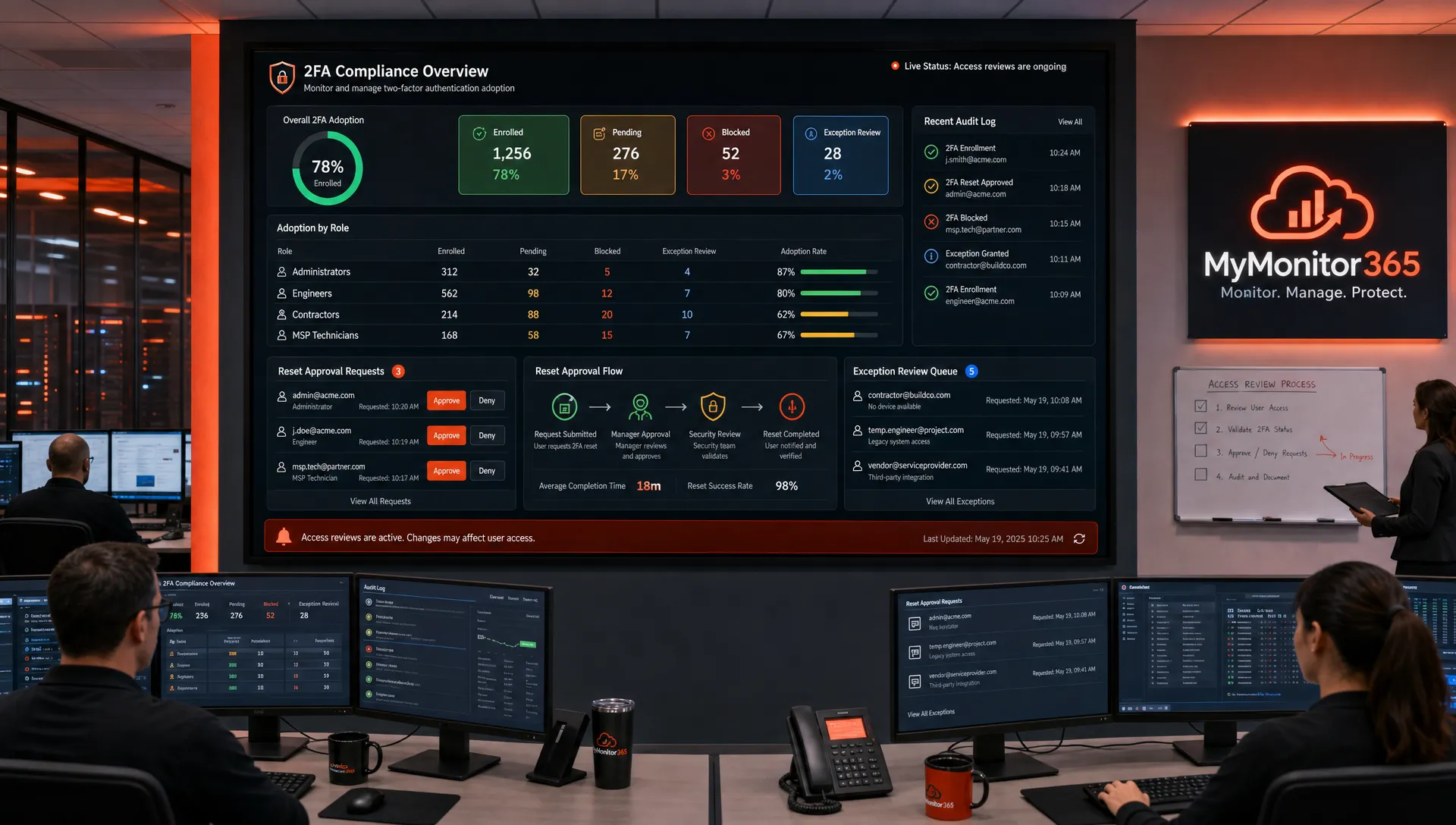
Two factor authentication is one of the fastest ways to reduce account takeover risk, but team rollout can get messy if it is treated as a last-minute security toggle. IT teams need to think about enrollment, enforcement, recovery, support desk workflows and auditability before requiring it across the organization.
For infrastructure and monitoring tools, the stakes are higher. A compromised monitoring account may expose incident data, alert destinations, configuration changes or operational patterns. If your team manages uptime, SSL, DNS and network checks, protecting access to those systems should be part of your baseline security posture.
This guide walks through a practical setup process for IT managers, network teams, CIOs and IT operations leaders who need to roll out two factor authentication without locking out legitimate users or slowing down incident response.
Start with a clear team policy
Before you ask users to enroll, decide what your organization expects. A good two factor authentication policy answers four questions: who must use it, which methods are allowed, how recovery works and when enforcement begins.
For most IT teams, 2FA should be mandatory for every user with access to production systems, monitoring platforms, incident channels or administrative settings. That includes full-time employees, contractors, MSP technicians and temporary users. If an account can change alerts, disable monitors or view sensitive operational data, it should not rely on a password alone.
| Account type | Recommended 2FA requirement | Additional control |
|---|---|---|
| Administrators | Mandatory before privileged access | Limit admin membership and review it regularly |
| On-call engineers | Mandatory before accessing monitoring or incident tools | Confirm recovery options before enforcement |
| MSP technicians | Mandatory for every technician account | Remove access immediately when contracts or roles change |
| Contractors | Mandatory before first login | Set an access end date and review ownership |
| Shared accounts | Avoid where possible | Replace with named accounts and audited access |
The policy should also define exceptions. Exceptions should be rare, time-bound and approved by a responsible owner. If an executive, vendor or service account cannot use 2FA immediately, document the risk and remediation deadline.
Choose the right authentication method
Not every second factor gives the same level of protection. The strongest options resist phishing and cannot be easily intercepted. The right choice depends on what your systems support, how your team works and how much administrative overhead you can manage.
The NIST Digital Identity Guidelines provide a useful framework for evaluating authenticators. CISA also encourages organizations to move beyond passwords through its More Than a Password guidance.
| Method | Best fit | Watch out for |
|---|---|---|
| Authenticator app with TOTP codes | Broad team rollout, including remote and on-call users | Users must keep access to the enrolled device or backup codes |
| Hardware security keys | Privileged users and high-risk roles | Requires inventory, spare keys and user training |
| Push approval | Teams that need fast sign-in | Users may approve fraudulent prompts if not trained |
| SMS codes | Temporary fallback when no better method exists | SIM swapping and message interception make it weaker |
| Email codes | Low-risk fallback only | Email compromise can defeat the control |
Time-based one-time passwords, often called TOTP, are common because they work with standard authenticator apps and do not require a cellular signal. MyMonitor365 supports TOTP-based 2FA, and administrators can make it mandatory for teams. If you need the product-specific announcement, see MyMonitor365’s update on securing every login with two factor authentication.
Prepare users before enrollment starts
A smooth rollout depends on communication. If users only see a prompt during an outage or urgent maintenance window, support tickets will spike. Send a short notice before the change and explain why it matters.
Keep the message practical. Tell users when enrollment opens, when enforcement begins, which authenticator apps are acceptable and what to do if they replace a phone. Include a reminder that 2FA codes should never be shared in chat, email or support calls.
Your internal notice should include:
- The enforcement date and the teams affected
- Approved authentication methods
- A link to setup instructions or internal documentation
- Recovery expectations for lost devices
- A support contact for enrollment issues
For IT operations, timing matters. Avoid launching enforcement during a major migration, audit freeze, holiday staffing gap or known high-traffic event. If 2FA affects monitoring access, coordinate with the on-call schedule so every active responder is enrolled before enforcement.
Run a small pilot first
Start with a pilot group that represents the way your team actually works. Include an administrator, an on-call engineer, a remote employee, someone using a personal mobile device if your policy allows it and a manager who approves access requests.
The pilot should test more than whether the QR code scans. Confirm that users can sign in from expected locations, recover access through approved channels and continue to receive critical alerts. If your team uses collaboration integrations for monitoring incidents, verify that access changes do not interfere with alert handling.
This is also the right time to validate support desk scripts. The help desk should know how to confirm identity before resetting 2FA. Attackers often target recovery flows because they are easier to manipulate than the authenticator itself.
Enroll users in a standard flow
Once the pilot is stable, open enrollment for the rest of the team. A typical TOTP setup flow is simple, but consistency reduces mistakes.
- Sign in to the account using the existing password or approved identity provider.
- Open account security settings and choose the option to enable two factor authentication.
- Scan the QR code with an approved authenticator app or enter the setup key manually.
- Enter the current one-time code to confirm enrollment.
- Save recovery codes in an approved password manager or secure company vault.
- Sign out and sign back in to confirm the second factor works.
Do not allow screenshots of QR codes or recovery codes to be stored in personal photo libraries, email inboxes or chat threads. Those locations are easy to forget and difficult to govern later.
For larger teams, track enrollment status in a simple report. You do not need a complex project plan, but you should know who is enrolled, who is blocked, who needs help and who has not started.
Enforce 2FA in phases
After enrollment, move from optional to mandatory access. A phased enforcement plan gives users time to fix device issues before they are blocked from work.
A simple rollout pattern works well for most IT teams:
- Phase 1: Enable self-service enrollment and notify all users.
- Phase 2: Require 2FA for administrators and privileged users.
- Phase 3: Require 2FA for all team members with production or monitoring access.
- Phase 4: Remove or expire temporary exceptions.
If you use MyMonitor365, mandatory 2FA is especially relevant for accounts that manage uptime checks, SSL monitoring, DNS monitoring, network checks and alert destinations. For a deeper policy view, the MyMonitor365 guide to two factor authentication best practices for IT teams covers privileged accounts, recovery and monitoring in more detail.
Build recovery controls before someone loses a phone
Recovery is part of the security control, not an afterthought. A weak recovery process can undo the value of two factor authentication.
At minimum, define who can approve a reset, what proof is required and how the event is logged. For administrators, consider requiring approval from a second trusted person before 2FA is reset. This is especially important for MSPs, where a technician may have access to multiple client environments.
Good recovery processes usually include identity verification, documented approval, temporary access limits and an audit trail. Bad recovery processes rely on informal chat messages like “I got a new phone, can you reset me?” without verifying the requester.
Recovery codes should be treated like emergency keys. Store them in a company-approved password manager or secure vault, not on a desktop file called “backup codes.” If your organization allows personal authenticator apps, document what happens when an employee leaves, changes devices or loses access to a personal phone.
Monitor and review 2FA adoption
After enforcement, keep reviewing access. Two factor authentication is not a one-time project. Users change roles, contractors leave, administrators rotate and emergency exceptions linger.
Use audit logs where available to review changes to security settings, user roles and authentication status. MyMonitor365 includes audit logs as part of its platform capabilities, which helps teams keep visibility into account-level changes that affect monitoring security.
Set a recurring review, such as monthly for administrators and quarterly for standard users. During the review, look for accounts without 2FA, stale users, excessive admin privileges, old recovery exceptions and accounts tied to former employees.
If security and infrastructure teams share responsibility for incidents, align access reviews with alert ownership. The MyMonitor365 article on how security and infrastructure teams can share alerts is useful when you need to clarify escalation paths and responsibilities.
Common rollout mistakes to avoid
Many 2FA projects fail because of operational friction, not technology. The control is straightforward, but the rollout needs ownership.
| Mistake | Why it causes problems | Better approach |
|---|---|---|
| Enforcing 2FA without notice | Users get locked out during active work | Communicate dates and setup steps in advance |
| Treating all roles the same | Admin risk is higher than standard user risk | Enforce privileged accounts first |
| Ignoring recovery | Lost phones become emergency support tickets | Document reset approval and logging before rollout |
| Allowing shared accounts | Accountability disappears | Use named accounts with role-based access |
| Keeping exceptions forever | Temporary risk becomes permanent | Expire exceptions and review them regularly |
| Relying only on SMS | Attackers can abuse phone number transfers | Prefer TOTP or stronger methods where supported |
The goal is not to make sign-in harder. The goal is to make unauthorized access much less likely while keeping legitimate work moving.
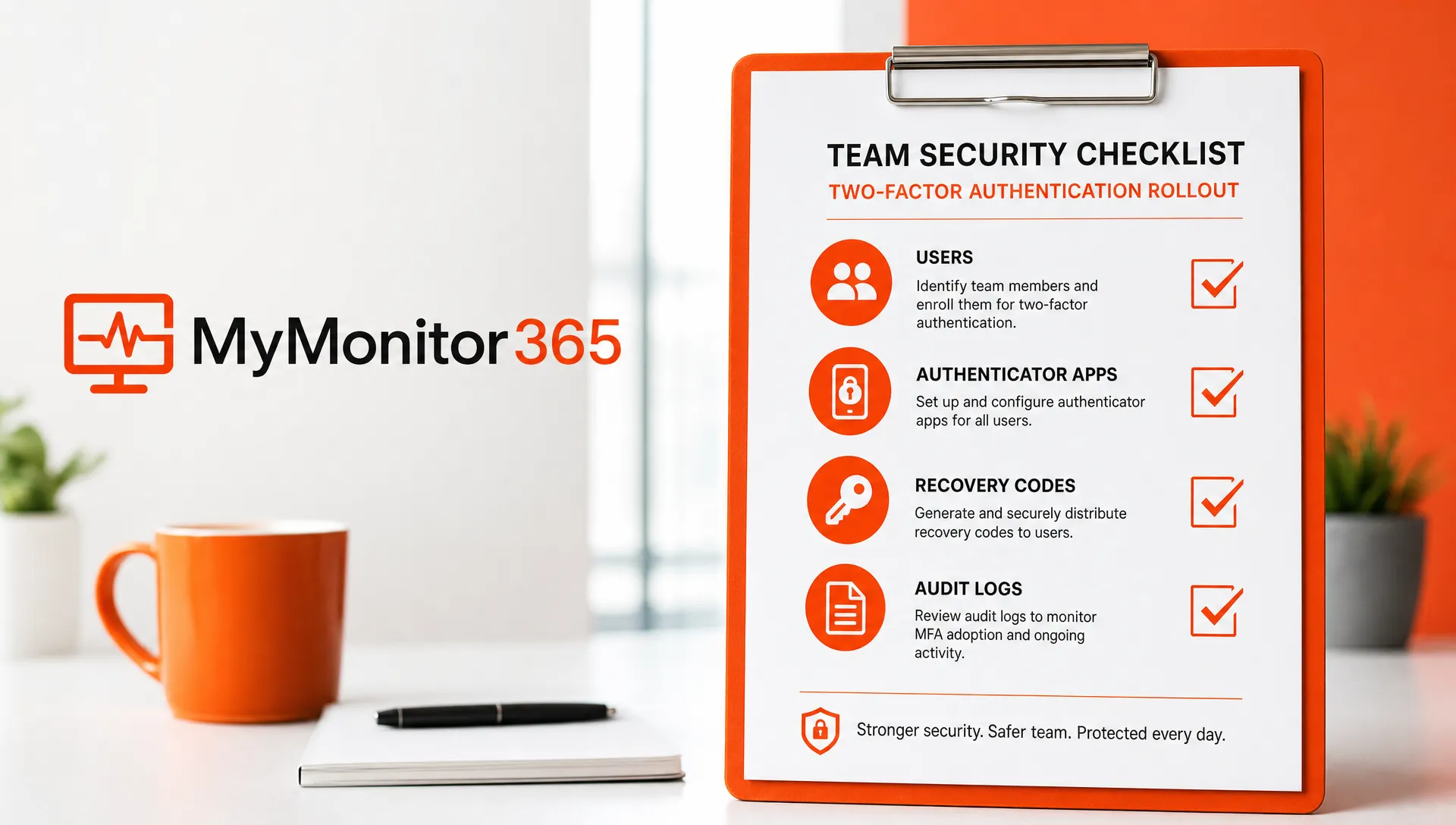
Team 2FA setup checklist
Use this checklist before you switch enforcement on:
- Define which users and roles must use 2FA.
- Choose approved authentication methods.
- Write a recovery and reset process.
- Notify users before enrollment begins.
- Pilot the process with administrators and on-call staff.
- Track enrollment until every required user is complete.
- Enforce 2FA in phases, starting with privileged accounts.
- Review audit logs and exceptions on a recurring schedule.
If every item is complete, your rollout is much less likely to create operational disruption.
Frequently Asked Questions
What is the best way to set up two factor authentication for a team? Start with a policy, choose approved authentication methods, run a pilot, enroll users, enforce 2FA in phases and document recovery before users lose devices.
Should administrators be required to use 2FA first? Yes. Administrators usually have the highest risk because they can change settings, add users, disable controls or access sensitive operational data. Enforcing 2FA for privileged accounts first reduces exposure quickly.
Is SMS two factor authentication good enough? SMS is better than password-only access, but it is weaker than TOTP authenticator apps or hardware security keys. Use SMS only as a temporary fallback when stronger methods are not available.
How should IT teams handle lost phones? Require identity verification, documented approval and audit logging before resetting 2FA. For privileged users, a second approval can reduce the risk of social engineering.
Does two factor authentication replace strong passwords? No. 2FA adds a second layer, but users still need unique passwords, password manager adoption, access reviews and secure recovery processes.
Secure monitoring access with MyMonitor365
Your monitoring platform should help your team respond to incidents, not become another security risk. MyMonitor365 supports infrastructure monitoring for websites, servers, DNS, SSL and network services, with alerting, audit logs and TOTP-based two factor authentication for account protection.
If you are reviewing access security for your operations team, visit MyMonitor365 to strengthen monitoring visibility and protect the accounts your team depends on.
Hashtags: #TwoFactorAuthentication #MFA #ITSecurity #ITOperations #MSP #UptimeMonitoring #MyMonitor365