
Introducing Status Pages and Website Widgets
Share service health with branded public Status Pages and embeddable website widgets. Available now on Pro and higher MyMonitor365 subscriptions.
Your monitoring dashboard tells your team when something needs attention. Your customers need a simpler view: is the service they rely on working? MyMonitor365 Status Pages give you a public way to answer that question, using the monitors you already manage.
Create a shareable page for your customers, publish a focused view for a particular service, or place a compact status widget directly on your website. Status Pages are available now on Pro, Team, Enterprise and MSP subscriptions. Visitors do not need a MyMonitor365 account to view a published page.
Show the services your audience cares about
Choose a custom list of monitors for each page rather than exposing your entire dashboard. The searchable, scrollable monitor picker supports multiple selections, and you can arrange the selected services in the order that makes sense to your audience.
Give each monitor a separate public display name, such as Customer Portal, Online Store or Messaging. Your internal monitoring setup stays separate from the names customers see.
Current status and uptime in one place
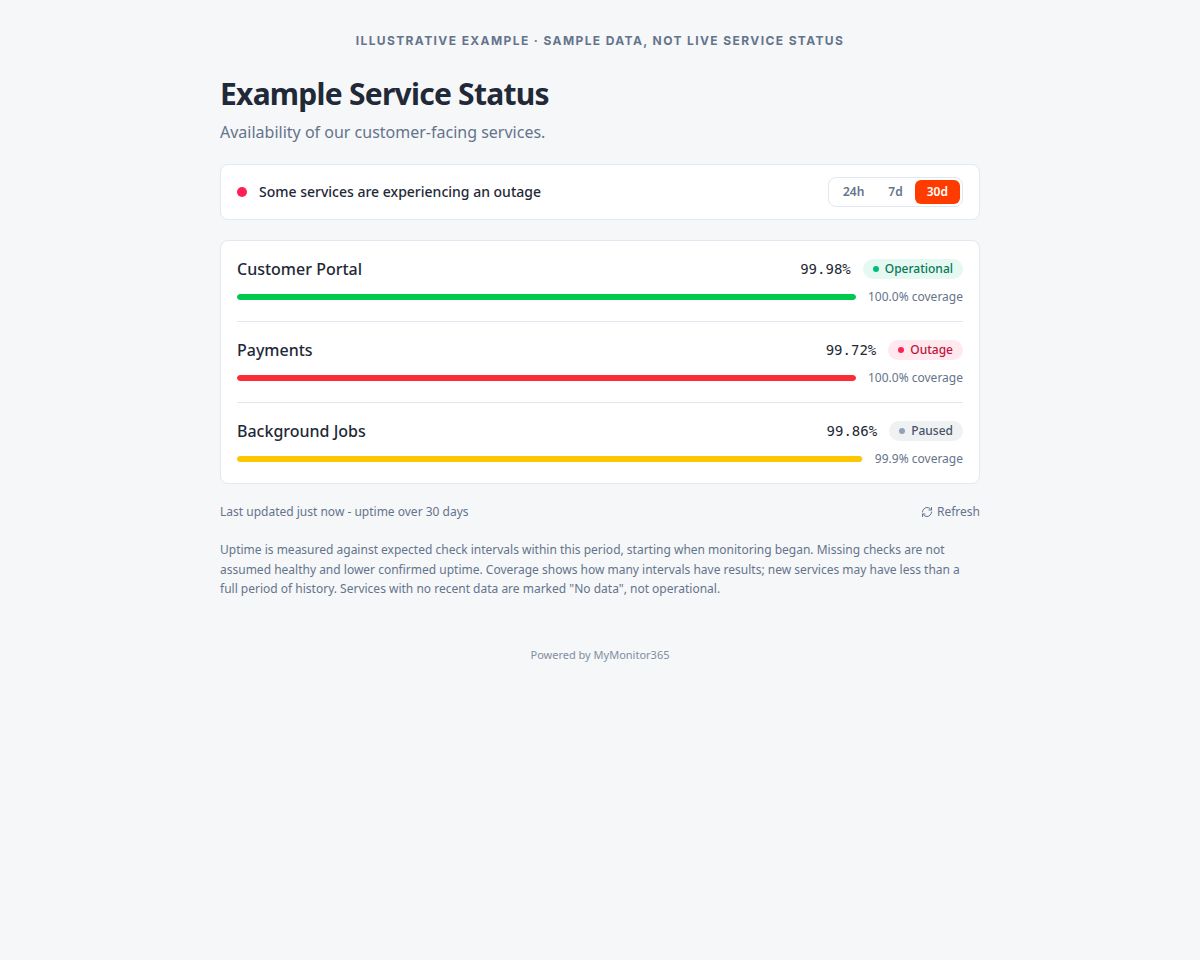
Published pages show the current status of each selected monitor alongside uptime information. Visitors can switch between 24-hour, 7-day and 30-day views, and the page refreshes automatically to pick up updated monitoring data.
Status bars use green for operational services, red for services that are down, and yellow for paused or unknown status. Missing monitoring history is not treated as confirmed uptime: coverage information and unavailable values make gaps clear rather than presenting an unsupported 100% figure.
Match your website's appearance
Adjust colors, fonts, borders and rounded corners with a live preview before saving. For embedded widgets, you can also choose a transparent background to fit the surrounding page.
Want a starting point based on an existing website? Enter the destination website's URL to generate editable styling suggestions. Review the result, make your own adjustments, and save when you are ready. Website matching provides suggestions rather than an exact copy of another site's design.
Share a link or embed a widget
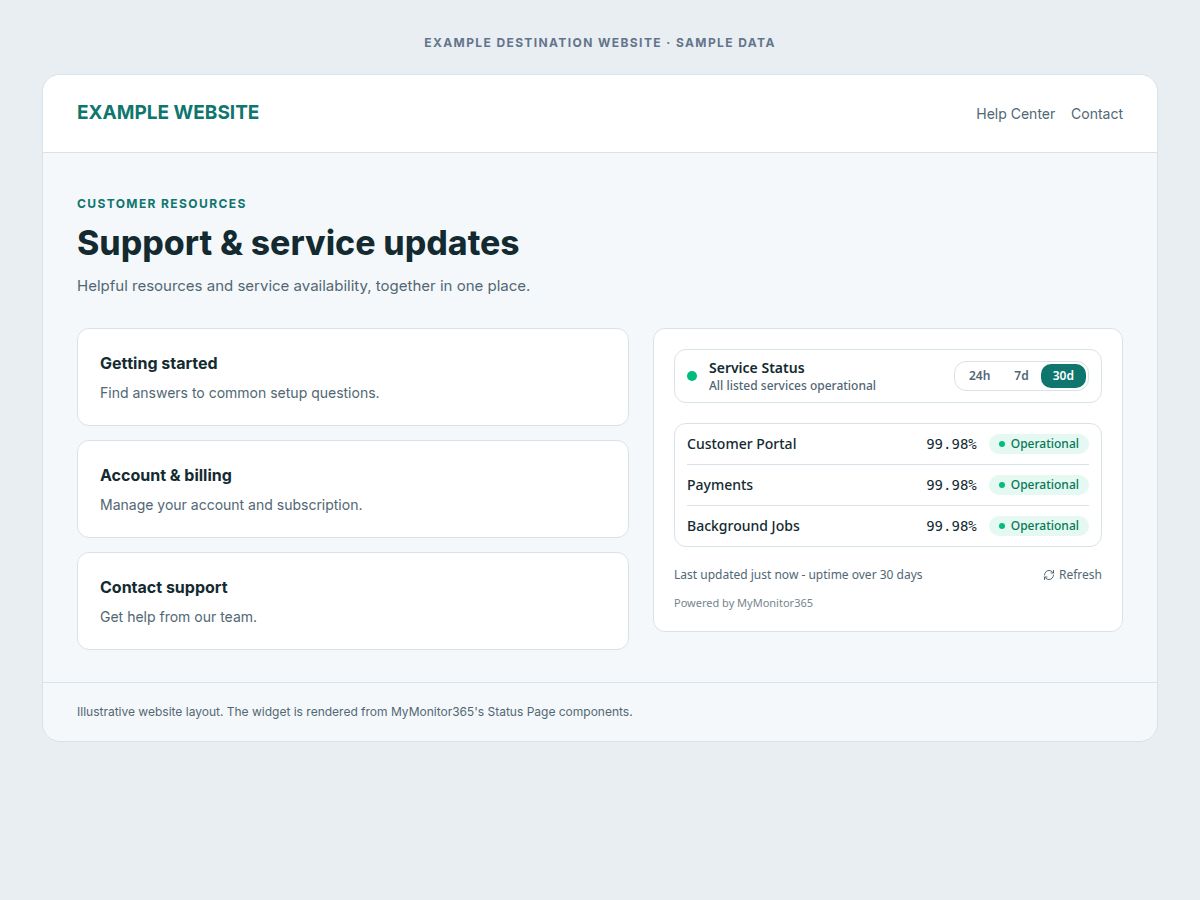
Each published Status Page has its own public URL, ready to share with customers or link from your support resources. You can also copy the iframe embed code to display a compact status widget on a website that supports iframe embeds.
Use a full page when visitors need a dedicated service-health view, or an embedded widget when availability should appear alongside your existing content.
Public visibility without exposing infrastructure details
Public pages use a limited response containing the page's public content, selected service display names, status and uptime information. Hostnames, IP addresses, agent details and underlying diagnostic errors are kept out of that public response—not merely hidden visually in the browser.
Nothing becomes publicly accessible until you explicitly publish the page. You can keep a page as a draft while preparing its monitor list and appearance, and unpublish it later to revoke access through both its public link and widget.
Create your first Status Page
Open Status Pages in the MyMonitor365 app and select New status page. Add a title and optional description, choose your monitors, enter their public display names, and customize the appearance. Select Publish now, then click Save. Your public link and widget embed code are then ready to use.
Status Pages require an active Pro or higher subscription. Personal accounts can upgrade through the app's Subscription page. See Features for an overview or Pricing to compare plans.